Since accessibility laws started getting more attention, especially with the European Accessibility Act now in force, we've had more clients ask about accessibility overlay tools. You've probably seen them: a small icon in the corner of a website that opens a panel with options to increase text size, change contrast, or switch on a "screen reader mode." They're often marketed as a one-line fix that makes your site compliant.
We understand the appeal. Unfortunately, they don't work the way they claim.
What overlays do
An overlay is a JavaScript widget added to your site. When it loads, it tries to detect and patch accessibility problems automatically, like guessing alt text for images or adding labels to unlabelled buttons. It also adds a toolbar of display options for visitors.
Why they fall short
They can't fix the underlying code. Accessibility problems are usually built into the structure of a site: confusing navigation, missing form labels, components that can't be used with a keyboard, poor heading structure. An overlay applies patches on top, at runtime, and many problems simply can't be detected or fixed that way.
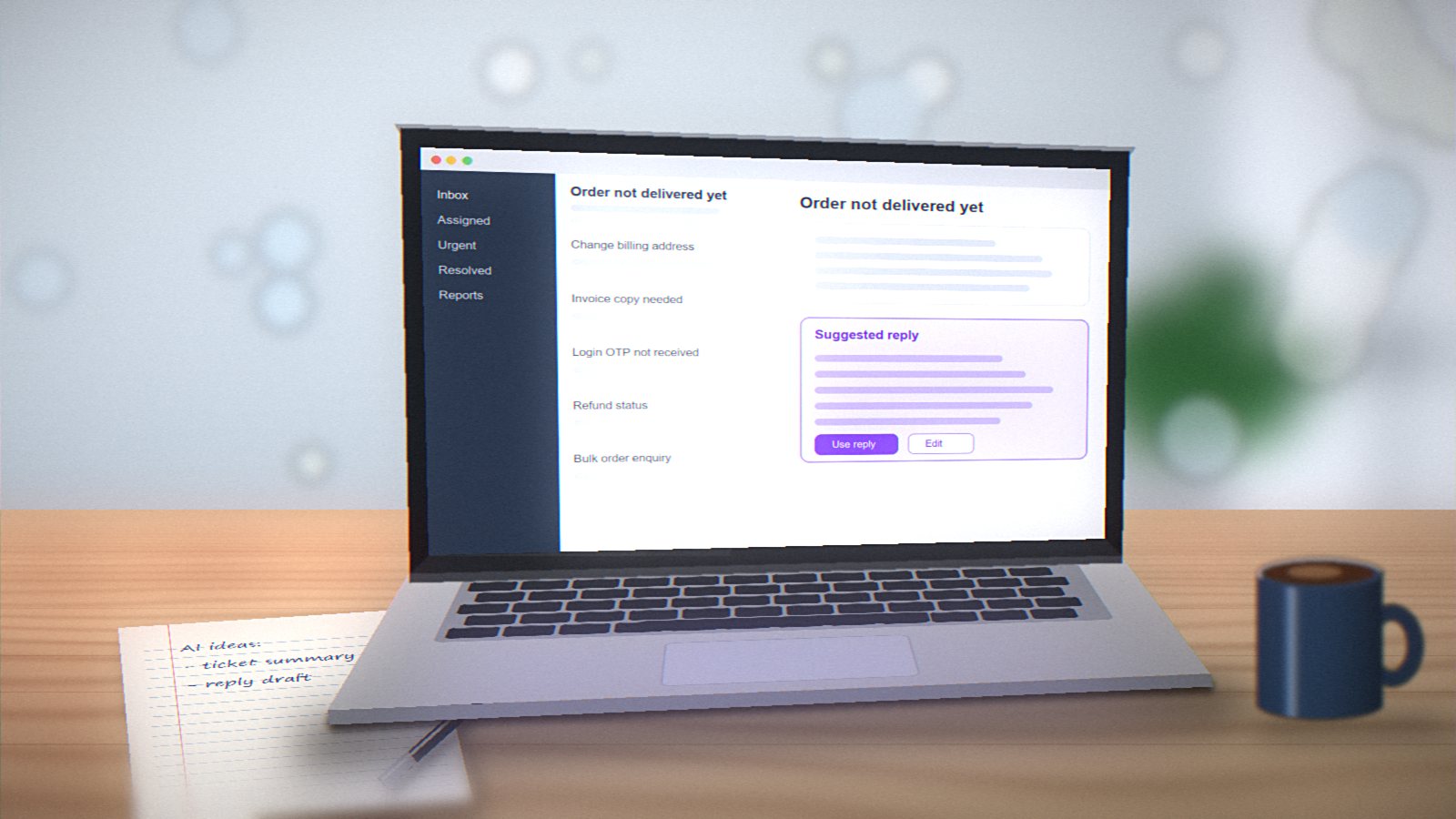
Automated fixes are often wrong. AI-generated alt text might describe a photo of your team as "a group of people standing." That's not helpful, and sometimes it's misleading.
They can interfere with assistive technology. People who rely on screen readers, magnifiers or voice control already have tools set up the way they like. Overlays can override or conflict with those settings, making the site harder to use for the very people they're meant to help.
The toolbar duplicates what devices already do. Browsers and operating systems already let users zoom, increase text size, enable high contrast and use screen readers. A separate toolbar on each website adds little.
They don't protect you legally. Websites using overlays have still faced accessibility complaints and lawsuits. Many disability advocates and accessibility professionals have spoken out publicly against overlay products.
What to do instead
1. Audit the site properly. Combine automated testing (axe, Lighthouse, WAVE) with manual keyboard testing and screen reader checks.
2. Fix issues at the source. Correct the HTML, CSS and JavaScript. Most fixes are straightforward: add labels, fix contrast, add alt text, use proper buttons and headings, make menus keyboard-friendly.
3. Prioritise by impact. Start with problems that completely block people, like a checkout that can't be completed with a keyboard, before cosmetic issues.
4. Build it into your process. Check accessibility during design, include it in development reviews, and test new pages before they go live. It's much cheaper than fixing it later.
5. Publish an accessibility statement. Explain what standard you aim for, known issues you're working on, and how people can contact you if they have trouble.
6. Involve real users if you can. Feedback from people who use assistive technology every day is far more valuable than any automated tool.
Cost compared to overlays
Overlay subscriptions can cost a fair amount every year, indefinitely, without actually fixing the site. A proper audit and fix for a typical small business site is often a one-time cost in a similar range, and the improvements stay with the site permanently.
There's no shortcut to accessibility, but there's no mystery either. It's careful, ordinary web development, done with everyone in mind.